
Convert image width and height between pixels and inches using a chosen pixels-per-inch value, then compare the same size at common density settings.
Advanced options
How to use our Pixels to Inches Converter Calculator
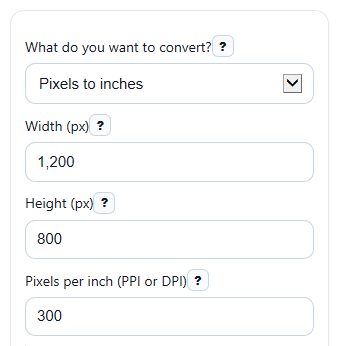
- Choose What do you want to convert? and enter the active size fields: Width (px) and Height (px) for pixels-to-inches, or Width (in) and Height (in) for inches-to-pixels.
- Enter Pixels per inch (PPI or DPI), or use Quick density preset if you want a common starting point like 96 or 300.
- If needed, turn on Also show centimeters and use Lock width and height ratio only when both sides already describe the shape you want.
- Click Calculate to see Converted size, Density used, and the comparison table for common density settings.
- Sanity-check the result: if the same pixels give a very large print size, your Pixels per inch (PPI or DPI) is probably too low; if the print size looks too small, the density is probably higher than you intended.
Definitions
Pixel (px): A tiny picture element in a digital image or screen image.
Inch (in): A physical length unit used for print size, paper size, and screen size.
Pixels per inch (PPI or DPI): How many pixels fit into one inch for this conversion. In this tool, the math uses pixels per inch either way.
Converted size: The main width and height after conversion. It shows inches in pixels-to-inches mode and pixels in inches-to-pixels mode.
Density used: The pixels-per-inch value actually used in the calculation.
Aspect ratio: The shape of the image, found by dividing width by height.
Centimeter (cm): A metric length unit. One inch equals 2.54 centimeters.
Common mistakes and quick fixes
Mistake: Leaving Pixels per inch (PPI or DPI) blank or entering 0.
Fix: Enter a number greater than 0, or choose a value from Quick density preset .
Mistake: Typing values into Width (px) and Height (px) while using inches-to-pixels mode.
Fix: In that mode, fill in Width (in) and Height (in) instead. Hidden fields do not count.
Mistake: Assuming Converted size in inches is a fixed real-world size without knowing the density.
Fix: Check Density used . The same pixel dimensions produce different inch sizes at different PPI or DPI values.
Mistake: Turning on Lock width and height ratio when one side is blank, zero, or not positive.
Fix: Make sure both active size fields already have positive values before using the ratio lock.
Mistake: Expecting Converted size in centimeters to appear after setting Also show centimeters to No.
Fix: Change Also show centimeters to Yes if you want the metric size shown.
Mistake: Reading the Size at common density settings table as one exact answer.
Fix: Use that table as a comparison guide, then rely on your chosen Pixels per inch (PPI or DPI) for the main result.
Limitations & Key Assumptions / Boundary Conditions
- Pixels do not have one fixed physical size on their own. A pixel count turns into inches only after you choose a pixels-per-inch value.
- For screens, the inch result is an estimate unless you know the actual display density. Screen assumptions like 96 px/in are common, but real devices can differ [1].
- For print, output can differ from the final product if the printer, lab, software, or layout changes the effective resolution.
- The tool requires the active width, active height, and Pixels per inch (PPI or DPI) to be greater than 0.
- Lock width and height ratio only works correctly when both active sides already have positive values that match the shape you want.
- The comparison table is for quick context. It does not override your chosen density in the main result.
- Centimeter output appears only when Also show centimeters is set to Yes.
Methodology
Core formulas
inches = pixels / ppi
pixels = inches * ppi
cm = inches * 2.54
ratio = width / height
How the calculator works
In pixels-to-inches mode, the calculator divides Width (px) and Height (px) by Pixels per inch (PPI or DPI) to get the physical width and height in inches.
In inches-to-pixels mode, it multiplies Width (in) and Height (in) by Pixels per inch (PPI or DPI) to get the pixel dimensions.
If centimeter output is enabled, the tool converts each inch result to centimeters using the exact unit conversion 1 in = 2.54 cm.
The comparison section reuses the same pixel dimensions across common density values such as 72, 96, 150, 200, 300, and 600 so you can see how physical size changes when density changes.
Mini example
Suppose your image is 1200 px by 1800 px and the density is 300 px/in.
width in inches = 1200 / 300 = 4
height in inches = 1800 / 300 = 6
width in cm = 4 * 2.54 = 10.16
height in cm = 6 * 2.54 = 15.24
So the converted size is 4 in by 6 in, or 10.16 cm by 15.24 cm.
Ratio lock behavior
If Lock width and height ratio is on, the calculator uses the current width-to-height relationship only when both active sides are already positive. If one side is blank or not positive, it stops with an error instead of guessing.
Assumptions used
For this tool, PPI and DPI are treated the same in the arithmetic because both act as pixels per inch in the conversion step. The physical result still depends on the intended print or display density. Screens do not have one universal pixel-to-inch relationship, so screen inch values are estimates unless the actual device density is known [1].