
Find percent increase, decrease, or no change from two values, or apply a stated percent change to a starting value.
Table of contents
How to use our Percent Change Calculator
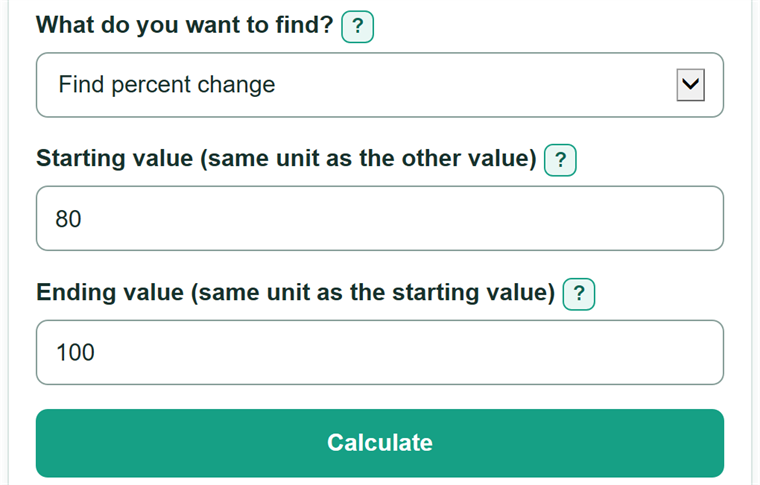
- Choose "Find percent change" to compare a before-and-after value, or choose "Apply percent change" when you already know the increase or decrease rate.
- Enter the "Starting value," which is the original or earlier value and the baseline for the calculation.
- For "Find percent change," enter the later "Ending value" in the same unit. For "Apply percent change," enter a positive number for an increase or a negative number for a decrease.
- Select "Calculate" to see the main answer, the raw amount changed, and the calculation used.
- Check the direction before using the answer: a higher ending value should give an increase, and a negative rate should lower a positive starting value.
Definitions
Starting value: The original or earlier value. It is the baseline used for percent change.
Ending value: The new or later value compared with the starting value.
Raw change: The ending value, or calculated new value, minus the starting value. A positive raw change means the value went up.
Percent change: The raw change written as a percentage of the absolute starting value.
Absolute value: A number's distance from zero. For example, the absolute value of -50 is 50.
Signed percent rate: A rate with direction: 15 means a 15% increase, while -15 means a 15% decrease.
Common mistakes and quick fixes
Mistake: Putting the newer value in "Starting value."
Fix: Enter the original or earlier number as the starting value and the later number as the ending value.
Mistake: Comparing values in different units, such as 2 feet and 30 inches.
Fix: Convert both values to the same unit before entering them.
Mistake: Entering 0.25 for a stated 25% change.
Fix: In "Percent change (%)," enter 25 for a 25% increase or -25 for a 25% decrease.
Mistake: Dividing by the ending value.
Fix: Percent change uses the starting value as the baseline. The calculator divides by the absolute value of the starting value.
Mistake: Trying to find percent change from a starting value of zero.
Fix: Use the raw change instead. Percent change is undefined because division by zero is undefined.
Mistake: Typing a comma as a decimal separator, such as 1,5.
Fix: Use a decimal point for decimals, such as 1.5, and commas only for thousands grouping, such as 1,500.
Limitations & Key Assumptions / Boundary Conditions
- Both values must describe the same kind of quantity in the same unit. The calculator cannot detect a unit mismatch from bare numbers.
- Finding percent change requires a nonzero starting value. The raw change can still be calculated from zero, but the percent change is undefined.
- Negative values are allowed. The calculator uses the absolute starting value in the denominator so the sign shows whether the value moved up or down.
- Applying a rate below -100% can produce a negative new value. This is mathematically valid but may not fit quantities that cannot be negative.
- Results use ordinary decimal arithmetic and may be rounded for display. Very large or very small values may be displayed in scientific notation.
Methodology
Finding percent change
The calculator first finds how much the value changed, then compares that change with the size of the starting value. It uses the absolute value of the starting value so a negative baseline still gives an increase or decrease direction.
raw change = ending value - starting value
percent change = (raw change / absolute value of starting value) * 100
For example, from 80 to 100, the raw change is 100 - 80 = 20. The percent change is (20 / 80) * 100 = 25%, so the result is a 25% increase.
Applying a stated percent change
To apply a rate, the calculator divides the percent rate by 100, adds the result to 1, and multiplies by the starting value.
new value = starting value * (1 + percent rate / 100)
raw change = new value - starting value
For example, applying -25% to 80 gives 80 * (1 - 25 / 100) = 60. The raw change is 60 - 80 = -20.