
Convert hours into weeks using either a full 7-day week or your own workweek hours so the answer fits real planning.
Table of contents
How to use our Hours to Weeks Converter
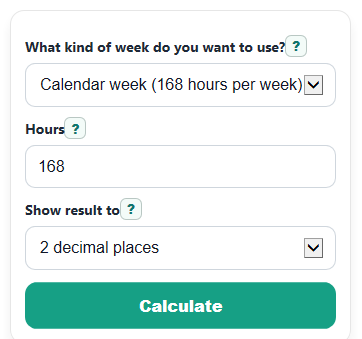
- Choose What kind of week do you want to use? Pick Calendar week (168 hours per week) for total time across all 7 days, or Work week (set hours per week) for a schedule such as 40 hours per week.
- Enter your total Hours. Negative values are allowed if you want to show time below zero relative to a reference point.
- If you picked work mode, enter Work hours per week. Then choose Show result to for the number of decimal places you want to see.
- Click Calculate to get Weeks, Days, Weeks, days, and hours, and Conversion used.
- Sanity-check the result: 168 hours should equal 1 calendar week, and 40 hours should equal 1 work week only when Work hours per week is 40.
Definitions
Calendar week: A full 7-day week. In this calculator, that means 168 hours per week.
Work week: A user-set schedule measured in hours per week, such as 40 hours per week.
Hours: The total time you enter to convert.
Work hours per week: The number of hours that count as one work week in your schedule.
Weeks: The main result, shown as decimal weeks based on the week type you selected.
Days: The same total time shown in 24-hour days.
Weeks, days, and hours: A friendlier breakdown of the same total time using whole weeks plus leftover time.
Conversion used: The exact rule used for the math, so you can confirm whether the result used 168 hours per week or your custom workweek value.
Common mistakes and quick fixes
Mistake: Leaving Hours blank and expecting a result.
Fix: Enter a number in Hours , such as 168, 84, or 40.
Mistake: Using Calendar week (168 hours per week) when you really mean a job schedule.
Fix: Change What kind of week do you want to use? to Work week (set hours per week) so Weeks is based on your schedule.
Mistake: Entering 0 or a negative value for Work hours per week .
Fix: In work mode, enter a value greater than 0 in Work hours per week , such as 35, 37.5, or 40.
Mistake: Reading Days as workdays instead of 24-hour days.
Fix: Treat Days as total hours divided by 24. For schedule planning, also check Weeks, days, and hours and Conversion used .
Mistake: Forgetting which rule the calculator used after switching modes.
Fix: Check Conversion used before using the answer. It tells you whether Weeks came from 168 hours per week or your custom workweek value.
Mistake: Thinking a negative Weeks result is an error.
Fix: A negative result simply means the entered Hours was negative, so the calculator carries that sign through to Weeks and Days .
Limitations & Key Assumptions / Boundary Conditions
- The calculator treats a calendar week as exactly 7 days and 168 hours.
- In Work week mode, results depend completely on the Work hours per week value you enter. Different jobs and schedules can use different totals.
- Days is always based on 24 hours per day, not on shifts, school days, or business days.
- The Weeks, days, and hours breakdown uses calendar-style leftover days only in calendar mode. In work mode, it avoids guessing workdays and shows whole work weeks plus leftover hours instead.
- Rounding changes only how the displayed result looks. The underlying conversion still uses the full entered value.
- Very large numbers are formatted for readability, but they still represent simple unit conversion, not a schedule with weekends, holidays, or time off.
Methodology
Core formulas
The calculator first reads your Hours input and then applies the rule for the week type you chose.
weeks = hours / 168
Use this when What kind of week do you want to use? is set to calendar week.
weeks = hours / work_hours_per_week
Use this when the week type is work week. Work hours per week must be greater than 0.
days = hours / 24
This supporting result is shown in both modes, so you can picture the same time as 24-hour days.
Breakdown logic
For calendar mode, the planning breakdown uses whole calendar weeks, then leftover whole days, then leftover hours.
whole_weeks = floor(hours / 168)
rem1 = hours - whole_weeks * 168
whole_days = floor(rem1 / 24)
rem_hours = rem1 - whole_days * 24
For work mode, the calculator does not guess a 5-day work schedule. It shows whole work weeks plus leftover hours.
whole_weeks = floor(hours / work_hours_per_week)
rem_hours = hours - whole_weeks * work_hours_per_week
Mini example
If you enter 84 for Hours in calendar mode, the math is 84 / 168 = 0.5, so Weeks is 0.5. The Days output is 84 / 24 = 3.5, so that same time is 3.5 days.
If you enter 60 for Hours in work mode and 40 for Work hours per week, the math is 60 / 40 = 1.5, so Weeks is 1.5 work weeks. The breakdown is 1 whole work week and 20 leftover hours.
Display and sign handling
The Show result to setting changes only the number of decimal places displayed. It does not change the actual conversion.
If Hours is negative, the calculator keeps that sign in Weeks and Days instead of changing it to 0.
Assumptions used
The calculator uses 24 hours per day and 7 days per calendar week, so 1 calendar week = 168 hours [1]. In work mode, one week is whatever value you enter for Work hours per week. That means the same number of hours can produce different week results depending on the selected week type.