
Encode plain text to Base64 or decode Base64 back to text, with smart help for Unicode, Base64url, padding, and data URL prefixes.
Advanced options
How to use our Base64 Encoder and Decoder Calculator
- Choose What do you want to do?: pick Encode text to Base64 for plain text, or Decode Base64 to text for a Base64 string.
- Paste your value into Text or Base64 input. In decode mode, you can paste standard Base64, URL-safe Base64, or a full data URL.
- If needed, open Advanced options and set Base64 style, Padding, or turn on Data URL prefix cleanup before decoding.
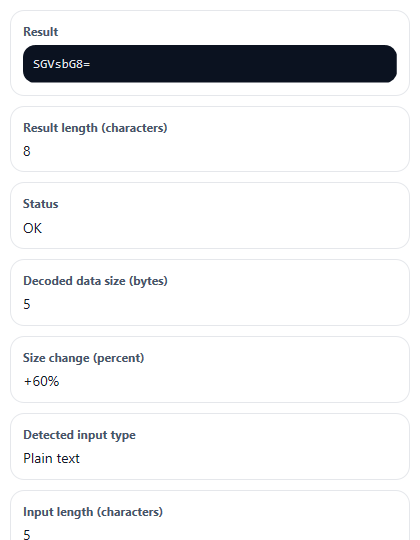
- Click Calculate, then read Result, Detected input type, and Status first. Use Input length, Result length, and Decoded data size for a quick size check.
- Sanity-check the answer: if Status says padding was repaired or Notes says the decoded data is not valid text, review the pasted value before using the result.
Definitions
Base64: A way to turn bytes into text using 64 symbols so data can be copied and shared more easily.
Base64url: A URL-safe version of Base64 that uses - and _ instead of + and /.
Padding: The = signs that may appear at the end of Base64 so the text fits full 4-character groups.
Data URL prefix: The front part of a value such as data:text/plain;base64, that describes the content before the actual Base64 data.
UTF-8: A common text encoding used to turn letters, symbols, emoji, and other Unicode text into bytes before Base64 encoding.
Decoded data size (bytes): The number of bytes represented by the Base64 after cleanup and decoding.
Size change (percent): How much larger or smaller the converted form is compared with the original byte size. A positive value means larger, and a negative value means smaller.
Common mistakes and quick fixes
Mistake: Pasting a full value like data:text/plain;base64,SGVsbG8= into Text or Base64 input in decode mode but leaving Data URL prefix off.
Fix: Turn on Data URL prefix so the tool removes the data:...;base64, part before decoding.
Mistake: Choosing Standard Base64 in Base64 style for a string that uses - or _ characters.
Fix: Change Base64 style to URL-safe Base64 or Auto-detect .
Mistake: Decoding a pasted value with missing = signs while Padding is set too strictly.
Fix: Set Padding to Auto or Keep or add padding when needed and recalculate.
Mistake: Expecting Result to show readable words when the decoded bytes are actually an image, file, or other binary data.
Fix: Read Status and Notes . If they say the decoded data is not valid text, the Base64 may be correct but it does not represent UTF-8 text.
Mistake: Comparing Input length and Result length as if they were file sizes.
Fix: Use Input size as UTF-8 , Decoded data size , and Size change when you want a size comparison in bytes.
Mistake: Thinking spaces or line breaks inside Text or Base64 input always make decoding fail.
Fix: In decode mode, the tool removes ASCII whitespace before checking Status , so pasted wrapped Base64 can still work.
Limitations & Key Assumptions / Boundary Conditions
- The tool is designed for text in UTF-8. If decoded bytes are not valid UTF-8 text, it reports that the data is not readable text instead of forcing garbled characters.
- In decode mode, whitespace is removed before validation, and an optional data URL prefix can be stripped. That cleanup can change the character count used for the final check.
- Auto-detect for Base64 style looks at the characters you pasted. If a string could fit more than one variant, the detected type is based on the safest match from the visible characters.
- Padding repair only adds the minimum trailing = signs when your Padding choice allows it. It cannot fix truly invalid characters or impossible Base64 structure.
- Size change compares byte sizes, not visual text length. For empty input, it reports 0% to avoid division by zero.
- The tool converts text only. It does not rebuild files, images, or MIME attachments from decoded binary data.
Methodology
How the calculator works
In encode mode, the tool reads Text or Base64 input as plain text, converts that text to UTF-8 bytes, and then converts those bytes to Base64. In decode mode, it cleans the pasted value, detects the likely Base64 variant, optionally repairs missing padding, decodes the bytes, and then checks whether those bytes form valid UTF-8 text.
Cleanup and detection
For decoding, ASCII spaces and line breaks are removed first. If Data URL prefix is on and the value starts with a data URL that includes ;base64,, the prefix is removed before validation. The tool then checks the remaining characters to decide whether the input looks like standard Base64, Base64url, or invalid data.
Core formulas
encoded_chars = 4 * ceil(n_bytes / 3)
decoded_bytes = 3 * (n_chars / 4) - pad_count
size_change_pct = ((new_bytes - original_bytes) / original_bytes) * 100
Here, n_bytes is the number of source bytes before Base64 encoding, n_chars is the cleaned Base64 length after any allowed padding repair, and pad_count is the number of trailing = signs. If the original byte size is 0, the calculator reports 0% size change.
Worked mini-example
Example:
encoding the text Hello uses 5 UTF-8 bytes. The encoded length formula gives 4 * ceil(5 / 3) = 8 characters, which matches SGVsbG8=. The size change is ((8 - 5) / 5) * 100 = 60%, so the Base64 text is 60% larger than the original bytes.
Example:
decoding SGVsbG8= uses 8 Base64 characters with 1 trailing = sign. The decoded byte formula gives 3 * (8 / 4) - 1 = 5 bytes, which becomes the text Hello when those bytes are valid UTF-8.
Interpretation notes
Detected input type explains what the tool recognized after cleanup. Status tells you whether decoding worked as-is, worked after padding repair, or failed because of invalid characters or impossible structure. Notes appears only for cases that need extra explanation, such as non-text decoded bytes.
Assumptions used
The calculator assumes text should be encoded and decoded with UTF-8 so Unicode characters such as emoji work correctly. It also assumes Base64 text follows normal 4-character grouping rules, with optional URL-safe symbols and optional missing padding when your selected padding policy allows repair.