
Translate typed or pasted text into leet-speak, or choose reverse reading for a best-effort plain-text version of leet-style writing.
Table of contents
How to use our Leet-speak Translator Calculator
- Choose whether your starting text is regular writing or leet-speak.
- Choose Readable for common number substitutions or Stronger for more changed letters.
- Type or paste a word, gamer tag, profile name, or message into Text to translate.
- Select Calculate, then copy the translated text if it is what you want to use.
- For reverse reading, check the translation note and substitution list. In the Stronger preset, 1 can mean i or l, so the reading may not match the original writer's intended text.
Definitions
Leet-speak: A writing style that replaces some letters with numbers or symbols, such as e with 3.
Readable preset: Changes a to 4, e to 3, i to 1, o to 0, s to 5, and t to 7.
Stronger preset: Uses the Readable substitutions and also changes b to 8, g to 6, l to 1, and z to 2.
Best-effort reading: A reverse translation made with the selected preset. It can differ from what the original writer meant.
Shared token: A token that can stand for more than one letter. In the Stronger preset, 1 can mean i or l, but the calculator reads it as l.
Common mistakes and quick fixes
Mistake: Entering only spaces or line breaks.
Fix: Enter at least one visible character in Text to translate before selecting Calculate.
Mistake: Using Text to leet-speak for text that already contains leet tokens.
Fix: Choose Leet-speak to text when you want tokens such as 3, 4, 5, and 7 read as letters.
Mistake: Treating a reverse reading as the exact original message.
Fix: Read the translation note. In the Stronger preset, 1 can mean i or l, and this calculator reads it as l.
Mistake: Expecting the Stronger preset to match the Readable preset.
Fix: Stronger also substitutes b, g, l, and z. Check the substitutions used before copying the text.
Mistake: Expecting punctuation, spaces, or every symbol to change.
Fix: Only characters in the selected preset are substituted. Other characters stay in the same order.
Limitations & Key Assumptions / Boundary Conditions
- These are fixed site-specific presets, not a universal leet-speak standard.
- Reverse translation cannot recover the exact original wording when the writer used different substitutions or when one token has more than one meaning.
- In the Stronger preset, 1 is displayed as l during reverse reading, although it can also mean i.
- Only listed letters and tokens are changed or recognized. Spaces, punctuation, line breaks, and unsupported characters pass through unchanged.
- Mapped letters become number tokens without keeping their original uppercase or lowercase form.
Methodology
Translation method
The calculator uses one of two fixed substitution presets. For text-to-leet-speak, it checks each letter without regard to uppercase or lowercase and replaces mapped letters with the selected token. Characters with no rule stay unchanged.
translated_text = translation_algorithm(source_text, direction, style)
For leet-speak-to-text, the calculator reads from left to right and matches the longest recognized token first. The current presets contain one-character tokens. In the Stronger preset, 1 is read as l and marked as ambiguous because it can also mean i.
Worked example
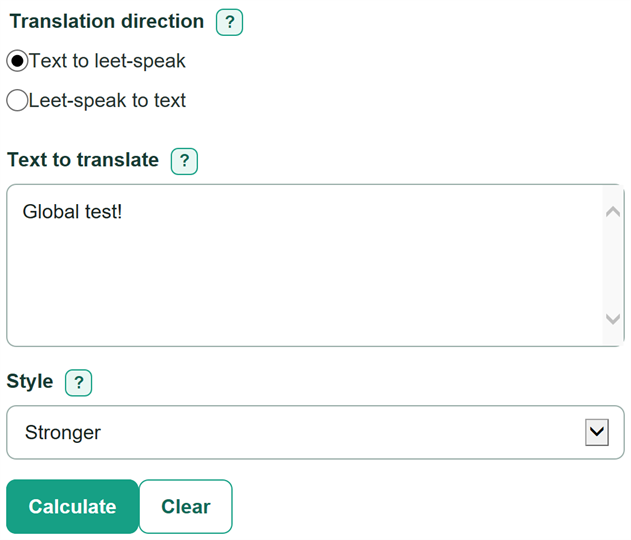
With Text to leet-speak and Stronger selected, "Global test!" becomes "610841 7357!". The letters g, l, o, b, and a become 6, 1, 0, 8, and 4. In "test," the mapped letters become 7, 3, 5, and 7.
Global test! -> 610841 7357!
With Leet-speak to text and Stronger selected, "1337 5p34k" becomes "leet speak." Each 1 is read as l, while the note explains that i is another possible meaning.
1337 5p34k -> leet speak
Translation note
Encoding confirms that the selected mapping was applied. Reverse reading is always marked best-effort. If a shared token occurs in the entered text, the note identifies the token and its alternate meaning.
translation_note = ambiguity_rule(source_text, direction, style)
Selected substitutions
The substitution list comes from the same preset used for the translation, so it shows the rules behind the displayed text.
active_mapping = mapping_rule(style)