
Enter your greens and browns to check the compost mix balance and find how much material to add toward your target.
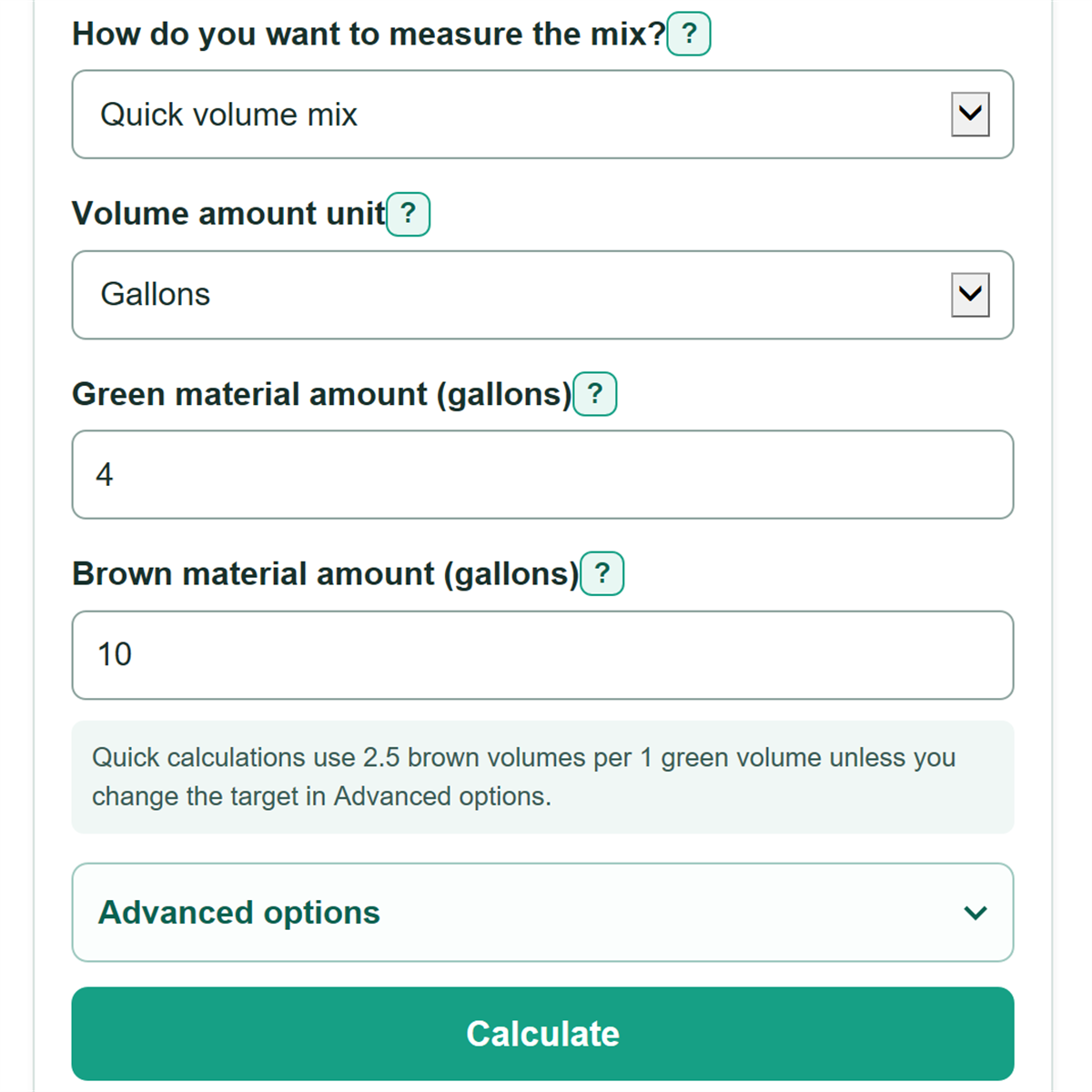
Quick calculations use 2.5 brown volumes per 1 green volume unless you change the target in Advanced options.
Advanced options
Table of contents
How to use our Compost Calculator
- Choose "Quick volume mix" if you measured materials in gallons or equal-size bucketfuls. Choose "Detailed C:N estimate" only if you know the material weights and C:N ratios.
- In quick mode, choose gallons or equal-size bucketfuls, then enter the green and brown amounts using that same unit.
- In detailed mode, enter each material weight in pounds and the first number of its C:N ratio. For example, enter 15 for a ratio of 15:1.
- Select Calculate. The first card shows your current mix balance, and the next card says which material to add and how much.
- Sanity-check the direction before adding material: a low quick brown-to-green ratio should call for browns, while a high ratio should call for greens.
Definitions
Greens: Compost ingredients that are generally richer in nitrogen, such as food scraps, fresh grass, and coffee grounds.
Browns: Compost ingredients that are generally richer in carbon, such as dry leaves, straw, and shredded cardboard.
Brown-to-green volume ratio: Brown container volume divided by green container volume. Quick mode uses this planning ratio.
C:N ratio: Carbon-to-nitrogen ratio. A ratio of 30:1 means 30 parts carbon for every 1 part nitrogen.
Detailed C:N estimate: A simplified, weight-adjusted estimate based on the two entered material weights and C:N ratios.
Target mix: The balance point used to calculate the amount of green or brown material to add. The calculator defaults to 2.5 brown volumes per green volume in quick mode and 30:1 in detailed mode.
Common mistakes and quick fixes
Mistake: Mixing gallons and bucketfuls for the green and brown amounts.
Fix: Check How do you want to measure the mix? and then recalculate. Choose one volume unit. Bucketfuls work only when both amounts come from the same size bucket.
Mistake: Treating the quick-mode balance as an exact C:N ratio.
Fix: Check How do you want to measure the mix? and then recalculate. Quick mode uses a container-volume rule. Use detailed mode only with measured weights and known C:N ratios.
Mistake: Sorting materials by literal color.
Fix: Check How do you want to measure the mix? and then recalculate. Sort by composting role instead. Coffee grounds belong with greens even though they are brown in color.
Mistake: Entering 0 for the green material amount in quick mode.
Fix: Check How do you want to measure the mix? and then recalculate. Enter an amount greater than 0 because the quick balance divides browns by greens.
Mistake: Typing a full ratio such as "15:1" in a C:N ratio field.
Fix: Check How do you want to measure the mix? and then recalculate. Enter only the first number, so type 15 for 15:1.
Mistake: Expecting decimal-place settings to change the amount to add.
Fix: Check How do you want to measure the mix? and then recalculate. Decimal places change displayed rounding only. They do not change the calculation.
Limitations & Key Assumptions / Boundary Conditions
- Quick mode is a household planning rule based on container volume. Moisture, packing, and particle size can make equal volumes behave differently.
- Detailed mode is a simplified weight-adjusted C:N estimate. It does not calculate laboratory carbon and nitrogen mass, dry matter, or moisture content.
- The detailed correction can only use the two entered materials when the green C:N ratio is below the target and the brown C:N ratio is above the target.
- Airflow, moisture, pile size, temperature, and turning affect composting even when the calculated mix is near the target.
- Material C:N ratios vary by source and condition. Use a trusted material reference and replace the target values if your local guidance uses different values.
Methodology
Quick volume mix
Quick mode divides the brown amount by the green amount. It compares that container-volume ratio with a practical range of 2 to 3 brown volumes for each green volume. The default correction target is 2.5 brown volumes per green volume.
current mix balance = brown volume / green volume
browns to add = quick target times green volume - brown volume
greens to add = brown volume / quick target - green volume
For 4 gallons of greens and 4 gallons of browns, the balance is 4 / 4 = 1 brown volume per green volume. At a target of 2.5, add 2.5 times 4 - 4 = 6 gallons of browns.
Detailed C:N estimate
Detailed mode calculates a simplified weight-adjusted average of the two entered C:N ratios. It then solves for the pounds of the opposite entered material needed to reach the selected target.
current mix balance = (green weight times green C:N ratio + brown weight times brown C:N ratio) / (green weight + brown weight)
browns to add = (target times total weight - weighted total) / (brown C:N ratio - target)
greens to add = (weighted total - target times total weight) / (target - green C:N ratio)
For 10 pounds of green material at 15:1 and 10 pounds of brown material at 60:
1, the estimate is (10 times 15 + 10 times 60) / 20 = 37.5:1. With a 30:1 target, add 10 pounds of the entered green material.
Displayed rounding
The calculator uses unrounded values in its calculations. Result decimal places changes only what is shown. A displayed zero can therefore be a small nonzero correction rounded to zero.