
Use this day counter to count days between dates or find a new date by adding or subtracting calendar days or business days.
Advanced options
How to use our Day Counter Calculator
- Choose What do you want to do: either count days between two dates or add or subtract days from a date.
- Enter the Start date, then enter the End date for between mode or choose Add or subtract and enter Number of days for offset mode.
- Select Count type. Use calendar days to count every day, or business days to count only the weekdays allowed by your selected workweek.
- If you are counting between two dates, set Include end date to Yes only when you want the last date counted too; then use Advanced options if you need holiday exclusion or a custom business-day workweek.
- Click Calculate, then sanity-check the result by reading What this means and comparing Calendar days in span with Business days in span when business-day rules are used.
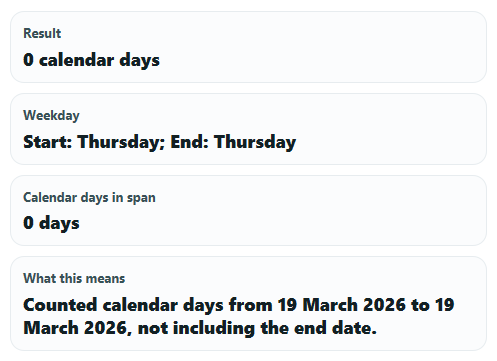
Definitions
Start date: The date you begin counting from or the date you start adding or subtracting from.
End date: The last date in the range when you are counting between two dates.
Count type: The rule for what gets counted. Calendar days count every date. Business days count only allowed weekdays.
Include end date: If Yes, the last date in the range is counted too. If No, the result is the elapsed number of days between the two dates.
Business-day workweek: The weekday pattern treated as business days, such as Monday to Friday or a custom set of weekdays.
Weekend or non-business days skipped: Dates inside the span that were not counted because they were outside your chosen business-day pattern.
Holidays skipped: Counted-weekday dates that were left out because Exclude US federal holidays was turned on.
Weekday: The day of the week for a result date or for the boundary dates, such as Monday or Thursday.
Common mistakes and quick fixes
Mistake: Entering an End date while using add or subtract mode and expecting it to change the answer.
Fix: In offset mode, the result uses Start date , Add or subtract , Number of days , and Count type . The End date is ignored.
Mistake: Turning on Include end date when you only want elapsed time between two dates.
Fix: Use Include end date = No for elapsed days. Use Yes only when the last date should count as one of the days.
Mistake: Typing a negative or decimal value into Number of days .
Fix: Enter a non-negative whole number in Number of days , then use Add or subtract to choose the direction.
Mistake: Choosing Count type = Business days but forgetting that weekends or non-business days will be skipped.
Fix: Check Business days in span and Weekend or non-business days skipped to confirm how many dates were counted versus skipped.
Mistake: Selecting Business-day workweek = Custom weekdays but leaving every weekday set to No.
Fix: Turn at least one of the custom weekday fields, such as Count Monday as a business day , to Yes before calculating.
Mistake: Expecting Exclude US federal holidays to change a calendar-day result.
Fix: Holiday exclusion only matters when Count type is Business days. It does not affect calendar-day counting.
Limitations & Key Assumptions / Boundary Conditions
- Business-day results depend on the selected Business-day workweek. A different workweek can change both the count and the target date.
- Exclude US federal holidays affects only business-day counting. Calendar-day results always count every date.
- Holiday skipping is limited to US federal holidays and their observed dates. It does not include state, school, company, religious, or country-specific holidays.
- In add or subtract mode, the starting date itself is not counted as day 1. The calculator moves forward or backward by the number of counted days entered.
- When the End date is earlier than the Start date, between-date results can be negative so you can see the direction of the span.
- Custom weekday results require at least one weekday to be counted as a business day. If every weekday is set to No, the calculation should be corrected before it can run.
- Date math is based on local calendar dates normalized to midnight to reduce daylight saving time off-by-one errors, but displayed dates still follow the user's local date context.
Methodology
How the calculator works
This tool supports two common date tasks: counting the number of days between two dates and finding a new date by adding or subtracting days from a starting date [1][2].
Core formulas
days = (end_date - start_date) / 86400000
inclusive_days = exclusive_days + sign(exclusive_days)
business_days = sum(for each date d in range: is_counted_weekday(d) and not is_excluded_holiday(d) ? 1 : 0)
target_date = start_date + direction_sign * days_count
target_date = iterate dates from start_date by direction_sign until counted_days = days_count, counting only included weekdays and non-excluded holidays
Between-dates mode
For calendar-day counting, the calculator finds the whole-day difference between End date and Start date. If Include end date is set to Yes, it adjusts the result so the last date is counted too. If both dates are the same, the result is 0 without end-date inclusion and 1 with end-date inclusion.
For business-day counting, the calculator checks each date in the span one by one. A date is counted only if it matches the chosen Business-day workweek. If holiday exclusion is on, counted weekdays that match supported US federal holidays are skipped instead of counted.
Add-or-subtract mode
For calendar days, the calculator simply moves forward or backward by the entered whole number of days. For business days, it moves one calendar date at a time and increases the running count only when the date matches your business-day rules. In this mode, End date and Include end date do not affect the answer.
Worked mini-example
If Start date is 2026-03-02 and End date is 2026-03-09, the exclusive calendar span is 7 days.
(2026-03-09 - 2026-03-02) / 86400000 = 7
If Count type is Business days with a Monday-to-Friday workweek, the counted dates are Monday through Friday only, so the result is 5 business days and 2 skipped non-business days.
If Start date is 2026-03-19, Add or subtract is Add days, and Number of days is 10 with calendar-day counting, the target date is 2026-03-29.
Assumptions used
The calculator uses whole dates, not times of day. It normalizes dates to local midnight before comparing them so clock changes from daylight saving time do not create false extra or missing days. Signed results are preserved for backward spans so users can tell when the end date comes before the start date.
When real-world results may differ
Real deadlines can differ if a school, employer, court, carrier, or local rule uses its own definition of business days, cutoff times, observed holidays, or inclusive counting. Check the rule you are working under if exact compliance matters.