
Find the age gap between two people using birth dates, birth years, or current ages, and optionally compare both ages on one date.
Advanced options
Table of contents
How to use our Age Difference Calculator
- Choose What do you want to compare? and pick Birth dates, Birth years, or Current ages.
- Enter First person label and Second person label if you want names in the result, then fill in the matching fields for your chosen mode.
- Open Advanced options if you want to add Compare ages on this date or switch Gap style between absolute and signed.
- Click Calculate to see the Age gap first, then check Who is older and any Exact gap or total-time results shown for your mode.
- Do a quick sanity check: if both people have the same birth date, birth year, or current age, the Age gap should be 0 and the result should say they are the same age.
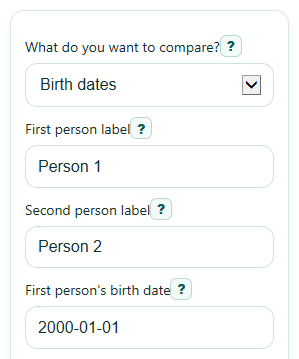
Definitions
Birth date: The day, month, and year a person was born [2].
Birth year: Just the year a person was born. This is less exact than a full birth date.
Current age (years): A person's age today, entered as a whole number of years in this calculator.
Age gap: The difference between two people's ages.
Absolute gap: Shows only the size of the difference, such as 5 years, without saying who is older.
Signed gap: Shows both size and direction. A positive result means the first person is older, and a negative result means the first person is younger.
Compare date: An extra date used to show how old each person is on that same day.
Exact gap (years, months, days): A calendar-based breakdown of the time between two full birth dates.
Common mistakes and quick fixes
Mistake: Picking Birth dates in What do you want to compare? but filling in First person's birth year and Second person's birth year instead of the date fields.
Fix: In Birth dates mode, enter First person's birth date and Second person's birth date.
Mistake: Leaving First person's birth date or Second person's birth date blank.
Fix: Fill in both date fields before you click Calculate so the calculator can show Age gap and Exact gap (years, months, days).
Mistake: Typing part of a year or a decimal into First person's birth year, Second person's birth year, First person's current age (years), or Second person's current age (years).
Fix: Use whole numbers only for those fields in Birth years mode or Current ages mode.
Mistake: Reading Age gap as direction when Gap style is set to Absolute gap.
Fix: If you want to know whether the first person is older or younger, switch Gap style to Signed gap and also read Who is older.
Mistake: Entering a Compare ages on this date that comes before one person's birth date.
Fix: Use a compare date on or after both birth dates, or leave Compare ages on this date blank.
Mistake: Expecting Total gap (days) or Exact gap (years, months, days) in Birth years mode or Current ages mode.
Fix: Use Birth dates mode when you need day-by-day results; the other modes only support year-level results and show an Assumption note.
Limitations & Key Assumptions / Boundary Conditions
- Birth years mode is only a year-level estimate because birthdays inside the year are unknown.
- Current ages mode is also year-level only and does not know each person's exact birthday.
- Exact gap (years, months, days), Total gap (months), and Total gap (days) are only available when full birth dates are entered.
- The calculator uses standard civil calendar rules, so month lengths and leap years affect exact date results.
- Month-and-day parts can feel surprising near the end of a month because the calculator borrows days from the previous calendar month.
- Compare ages on this date must be on or after both birth dates when Birth dates mode is used.
- Future or impossible dates should not be used for age calculations.
Methodology
How the calculator works
The calculator uses one of three methods based on your selected input mode. It always compares the first person with the second person, then formats the result as an absolute gap or a signed gap.
Formulas
gap_years = abs(age1 - age2)
gap_years = abs(birthyear1 - birthyear2)
signed_gap_years = age1 - age2
signed_gap_years = birthyear2 - birthyear1
exact_gap = calendar_difference(later_birthdate, earlier_birthdate)
age_on_date = calendar_difference(compare_date, birthdate)
What each formula means
In Current ages mode, the calculator subtracts one entered age from the other. In Birth years mode, it compares the two birth years. In Signed gap mode, a positive result means the first person is older, and a negative result means the first person is younger.
In Birth dates mode, the calculator finds the time between the earlier birth date and the later birth date using calendar date arithmetic. That means it counts real calendar years, real calendar months, and real calendar days instead of assuming every month has the same length [1].
Worked mini-example
If the first person was born on 2000-01-15 and the second person was born on 2005-01-15, the earlier date and later date are exactly 5 calendar years apart. The calculator shows an Age gap of 5 years, an Exact gap of 5 years, 0 months, 0 days, a Total gap (months) of 60, and a Total gap (days) of 1827.
If you use Current ages mode with 18 and 21, the absolute gap is 3 years. In signed mode, the result is -3 years because the first person is younger.
Compare-on date logic
When you enter Compare ages on this date in Birth dates mode, the calculator also measures each person's age from their birth date up to that chosen date. This answers questions like how old both people will be on the same future day.
Assumptions used
Birth years mode and Current ages mode do not know the exact birthday, so they cannot produce exact month-and-day results. For those modes, the calculator shows a year-level answer and an Assumption note instead of pretending the day count is exact.
The exact date method follows the standard civil calendar with real month lengths and leap years, so results near month ends can look different from simple day-count estimates [1].